Open .dng files online
To open a .dng file in your browser, press Open editor on the RAW photo editor, then choose File > Import Photos and pick your file. The photo joins the editor's library and opens in the develop view with a histogram and exposure, color and tone controls. On 2026-10-17 we opened two public-domain DNG files from raw.pixls.us, one from a Google Pixel 4a and one from an Apple iPhone 8, and both opened with the right picture and camera details. We raised the exposure of the Pixel photo to +1.00 and exported a JPEG; its average brightness rose from 89 to 115 (out of 255) compared with the same export at 0.00. The Export dialog can also write a DNG: the Rendered photo option gave a valid 16-bit DNG, but the Raw data option did nothing in our test. Two things to know: OK did nothing in the Export dialog until the Folder box had a name in it, and the library lives in your browser's storage, so keep your original files. Nothing is uploaded and there is no sign-up.
Best on a desktop browser. This editor has desktop menus and shortcuts.
Can I open it?
| Check | Result | Notes |
|---|---|---|
| Listed by the engine | Listed in docs | DNG is listed as supported, and DNG files use their own color matrices. Export lists JPEG, PNG, TIFF, WebP, AVIF, DNG and the original file. |
| Opened a .dng file | Works | File > Import Photos with a 13.6 MB DNG from a Google Pixel 4a (4016 x 3008, a public-domain sample from raw.pixls.us). The file was added to the library as a DNG and opened in the develop view: the forest photo showed, the histogram drew, and the info line read ISO 55, 4 mm, f/1.7, 1/250. |
| Opened a .dng from another camera | Works | A 10.5 MB DNG from an Apple iPhone 8 (also public domain, raw.pixls.us) imported the same way and showed a color-chart photo with ISO 20, 4 mm, f/1.8, 1/30. We only opened this one; we did not edit or export it. |
| Edited it | Works | We typed +1.00 into Exposure in the Light panel. The picture got brighter and the histogram changed. After we reloaded the page, the photo and its +1.00 setting were still in the library, because the library is kept in the browser's storage. |
| Exported as JPEG | Works | File > Export with the default settings (JPEG, sRGB, quality 90, long edge 2048 px) downloaded a 1.5 MB .jpg. The file command and macOS sips read it as a 2048 x 1534 JPEG with the camera model Google Pixel 4a and the software name LightCraft in its metadata. Average brightness (ffmpeg) was 115.4 at +1.00 and 89.1 for the same export at 0.00. Metadata was set to All, which also kept the photo's GPS tags. Our automated browser could not drive the save dialog, so we turned it off and the editor fell back to a normal browser download; the save dialog was not checked by hand. |
| Exported as DNG (Rendered photo) | Works | The Rendered photo option downloaded a 13.1 MB .dng. sips reads it as a 2048 x 1534 DNG from a Pixel 4a. Its TIFF tags show DNG version 1.4, 16-bit RGB with the LinearRaw type and Deflate compression, and the software name LightCraft DNG 2. It is a processed picture saved in a DNG wrapper, not the sensor data. We did not check the pixels or open it in other RAW software. |
| Exported as DNG (Raw data) | Not supported | The Raw data option, described in the dialog as raw photos as DNG with the edits embedded, did nothing in our test: OK stayed highlighted, the dialog stayed open and no download started. We tried several times with Lossless and None compression and waited 60 to 90 seconds each time. |
| Export dialog Folder box | Partial | With the Folder box empty, OK did nothing. After we typed a name (we used "exports") the download started. In the browser the box is only a name: the file arrived as an ordinary browser download. |
| Other RAW formats, lens corrections, Back Up Library | Not tested yet | Not tested for this format. |
| Phone screen (390 px wide) | Not tested yet | Not tested for this format. |
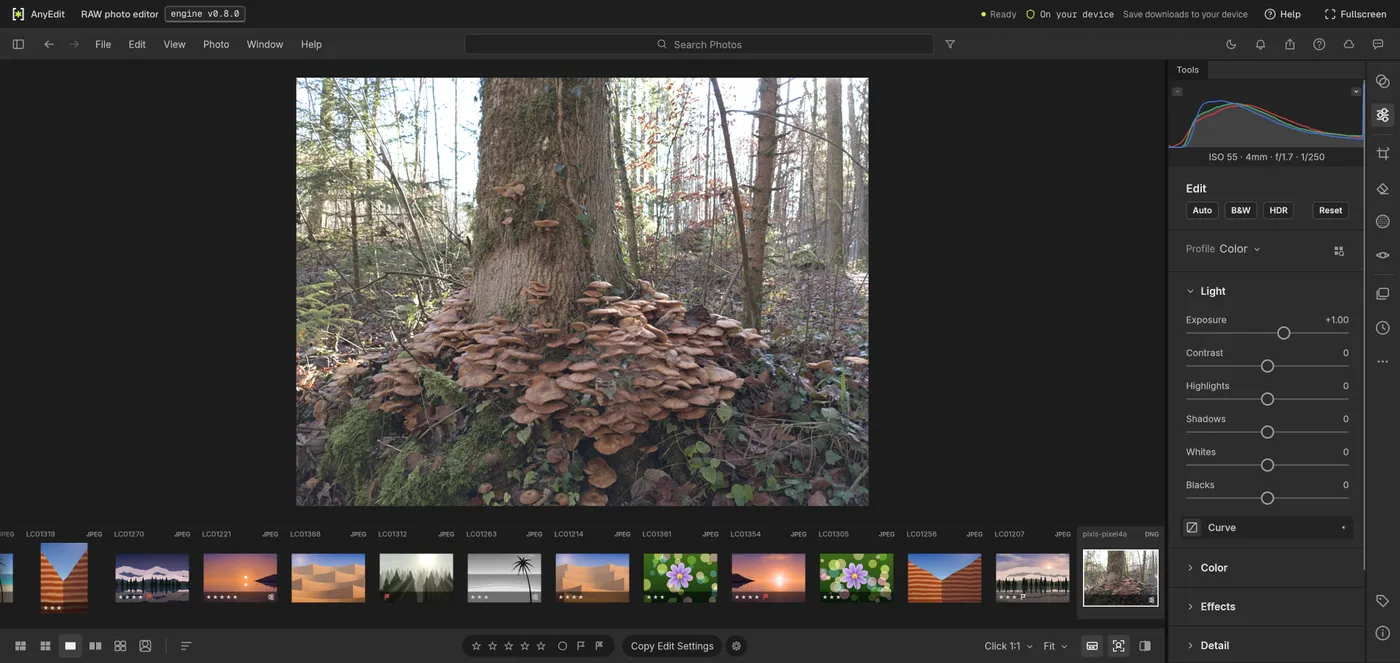
Our test file open in the raw photo editor on anyedit.app, 2026-10-17