Open .srt files online
An .srt file is plain subtitle text, so any text editor opens it. This page is for when you want to see the cues with their times and edit them. SRT is a subtitle feature of the video editor, not a separate tool. Press Open editor and drop your .srt onto the editor window: it adds a caption track, and the Text panel lists every cue with its start time, end time and text. You do not need a video; on 2026-10-16 an .srt dropped into a new empty sequence worked the same way. We opened a 3-cue file with a two-line cue and accented letters, a matching .vtt file, and edited the first cue. Exporting from File > Export > Captions gave a valid UTF-8 .srt with the edit, the accents, a two-line cue and Japanese text intact. Caveats: cue times moved by up to 13 milliseconds because the editor snaps them to video frames, the Japanese text showed as empty boxes on screen, and we did not test exporting .vtt. Nothing is uploaded and there is no sign-up.
Best on a desktop browser. This editor has desktop menus and shortcuts.
Can I open it?
| Check | Result | Notes |
|---|---|---|
| Listed by the engine | Listed in docs | Caption tracks with SRT, WebVTT and SCC import and export, frame-exact timing, and editing in the Text panel. |
| Opened an .srt file | Works | A 3-cue .srt (made by hand, with a two-line cue and the text "Café déjà vu — naïve résumé") was dropped onto the editor. A caption track C1 appeared above the video tracks with three cues. The Text panel > Captions tab listed each cue with editable start and end timecodes and its text. The accented letters and the two-line cue showed correctly. |
| Opened without a video | Works | We made a new empty sequence (File > New > Sequence) with no video or audio and dropped the .srt on it. The caption track and all three cues appeared, and the sequence length became about 5.8 seconds to fit them. A video is not needed to read or edit the text. |
| Opened a .vtt file | Works | A matching WebVTT file was dropped onto the same sequence and added a second caption track with the same three cues. |
| Edited it | Works | We clicked at the end of the first cue text in the Text panel and typed " Edited!". The new text showed in the list and on the caption block in the timeline. |
| Exported as .srt | Works | File > Export > Captions downloaded Main_Edit.srt (named after the sequence, not our file). The file command reads it as UTF-8 text. It held three cues with the edited first line, "Café déjà vu — naïve résumé" with its second line, and the Japanese text in the third cue, all unchanged. Cue times shifted by up to 13 ms because the editor snaps them to the frames of the 23.976 fps sequence (for example 00:00:02,200 became 00:00:02,211). Our automated browser could not drive the save dialog, so we turned it off and the editor fell back to a normal browser download; the save dialog was not checked by hand. |
| Japanese text on screen | Partial | The Japanese characters in the third cue showed as empty boxes in the Text panel and the timeline, because the editor has no CJK font in our test. They were still in the exported .srt. |
| Exported as .vtt | Not tested yet | Not tested for this format. The editor lists WebVTT export, but we only exported .srt. |
| Changing cue times, burning captions into a video | Not tested yet | Not tested for this format. |
| Phone screen (390 px wide) | Not tested yet | Not tested for this format. |
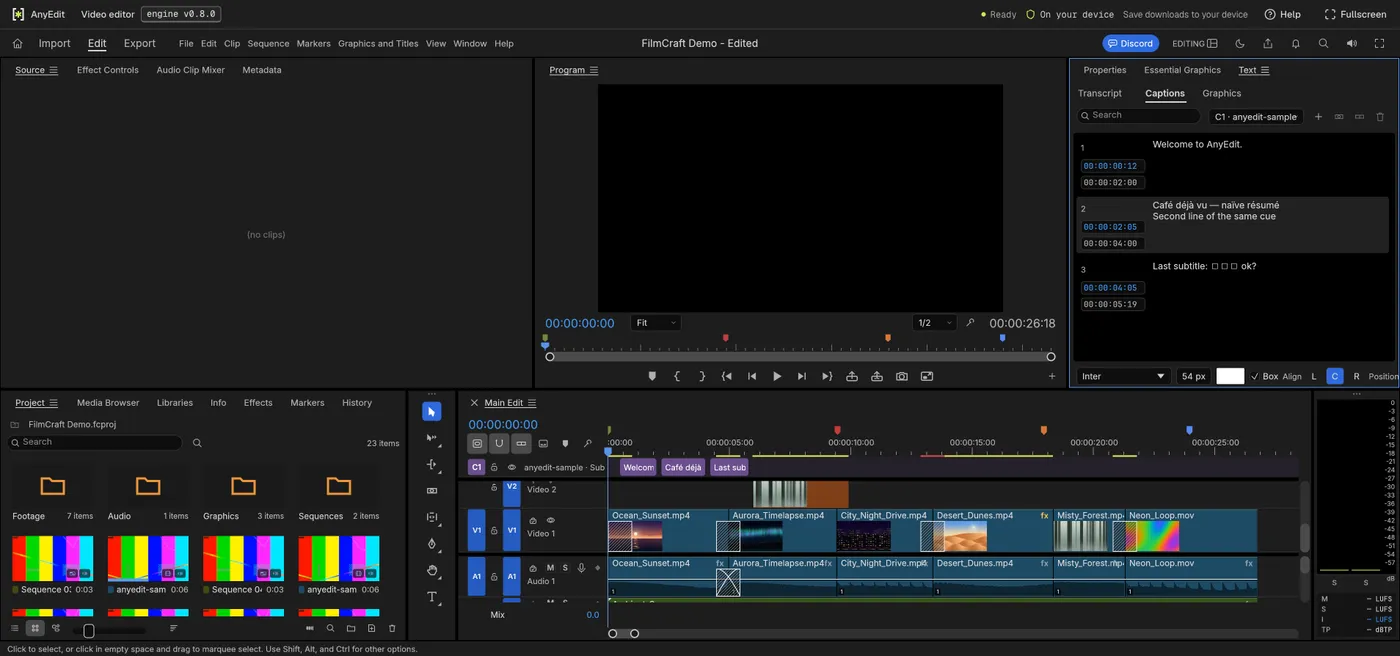
Our test file open in the video editor on anyedit.app, 2026-10-16